Budget and actual costs
See what you planned to spend, what you have spent, and where you stand.
- Set a budget on each phase
- Budget > Add cost every time you spend
- Check the three numbers at the top
The page at a glance
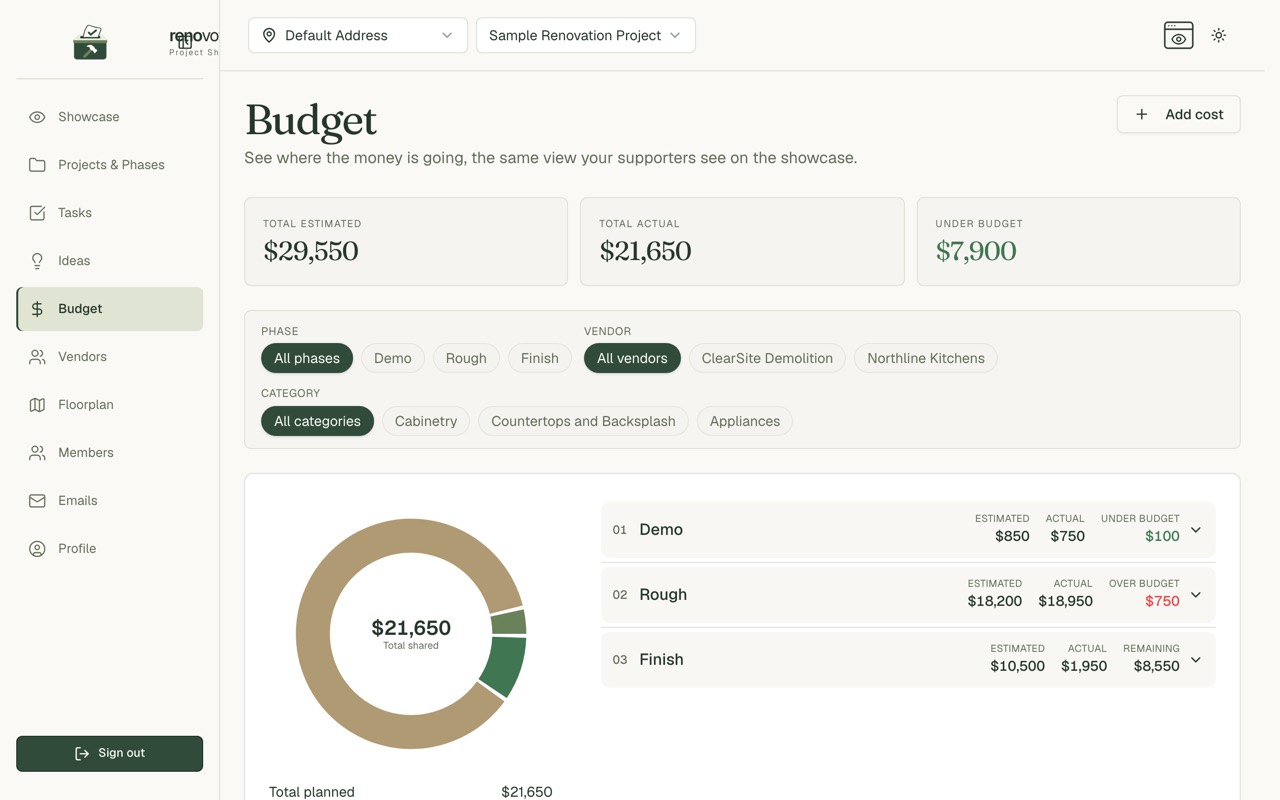
Three numbers sit at the top:
- Total estimated: what you expected to spend
- Total actual: what you have spent
- Remaining, Under budget or Over budget: where you stand
A phase that is still in progress shows Remaining. Once it is done it shows Under budget (green) or Over budget (red).
Set estimates
- Give each phase an estimated budget when you create it.
- Or change it later on the Budget page.
- Ideas can carry an Estimated Cost too.
- On a task, note your DIY savings if you do the work yourself.
Record a cost
- Choose Add cost.
- Pick the task.
- Add a description and an amount.
- Pick a vendor if it applies.
- Save.
Tip: You can also add a cost from the task itself or from a vendor's card.
Look inside a phase
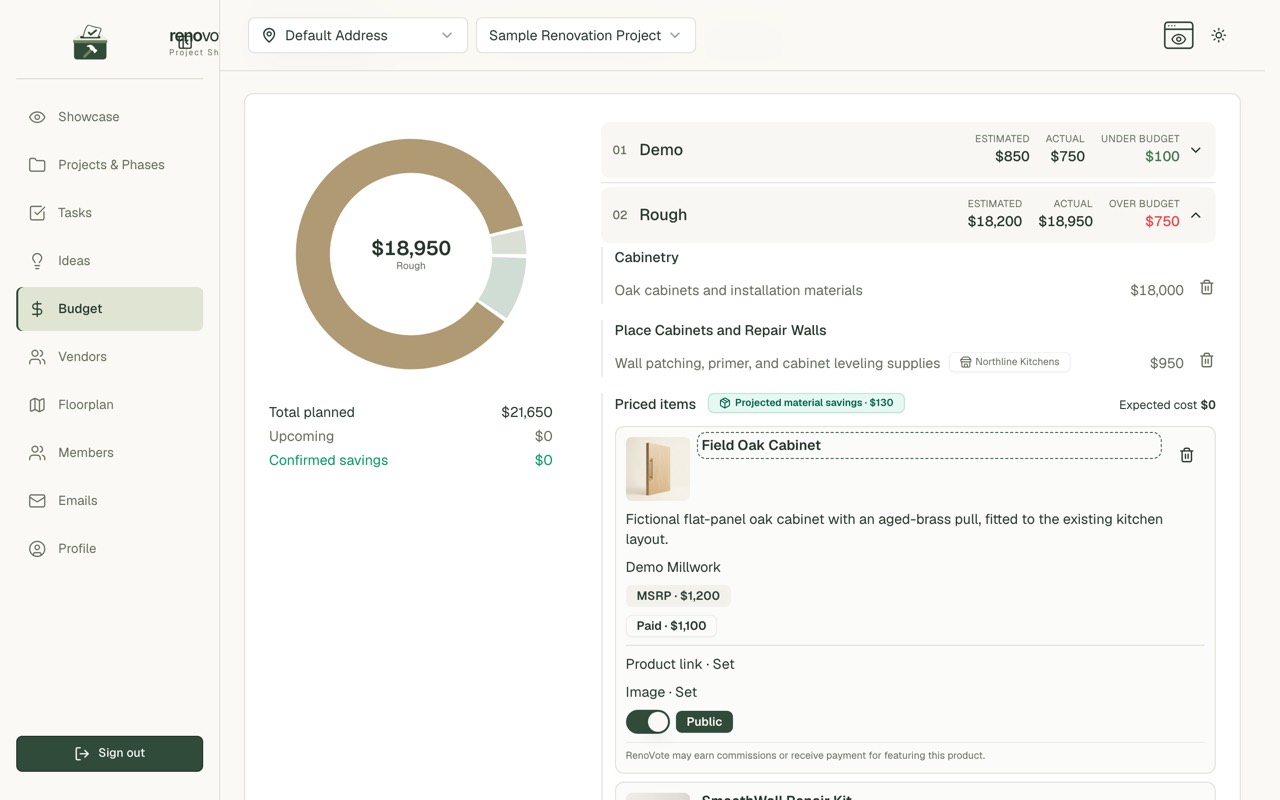
- Click a phase to open it.
- You see each cost, the task it belongs to and the vendor.
- Edit an amount or delete a cost right there.
- Products you added to ideas appear as Priced items.
Filter
Use the chips at the top to narrow the page:
- Phase
- Vendor
- Category
For example, pick a vendor to see everything you spent with them.
Pick your currency
- Open Profile.
- Choose from USD, CAD, EUR, GBP or AUD.
- It applies to the prices you see.
What the public sees
- Once you publish, estimated and actual costs show by default.
- Turn off Show Prices to hide them.
- The detailed breakdown by phase and task stays hidden until you turn on Show public cost items.
- Hidden items are left out of the public totals.
See Sharing and showcase.
Common questions
The page says "Budget data unavailable". Choose Retry. If it keeps happening, reload the page.
My totals look too low. Check the Phase, Vendor and Category chips. Each one narrows the page.