

Members and roles
Invite the people you are renovating with, and decide what each can do.
- Members > Invite User
- Pick a role
- They get an email and have seven days to accept
Roles at a glance
| Role | What they can do |
|---|---|
| Viewer | View the project and vote |
| Collaborator | Edit the project |
| Manager | Manage tasks and costs |
| Owner | Full control, including people |
Tip: Not sure? Start with Viewer for family and friends who just want to follow along and vote.
Invite someone
- Open Members.
- Choose Invite User.
- Enter their email address.
- Pick a role.
- Send.
Only the project owner sees the invite, remove and resend controls.
Good to know: The menu item says Members. The page itself is titled User Management.
What the invited person sees
- An email with a link.
- A page that shows the project, their role and who invited them.
- A form for their name and password.
- Then they land in the project.
Pending invitations
The right-hand card lists invitations that have not been accepted yet.
- Each shows the email, role and expiry date.
- The refresh arrows resend it.
- The cross cancels it.
- An invitation expires after seven days.
Change a role or remove someone
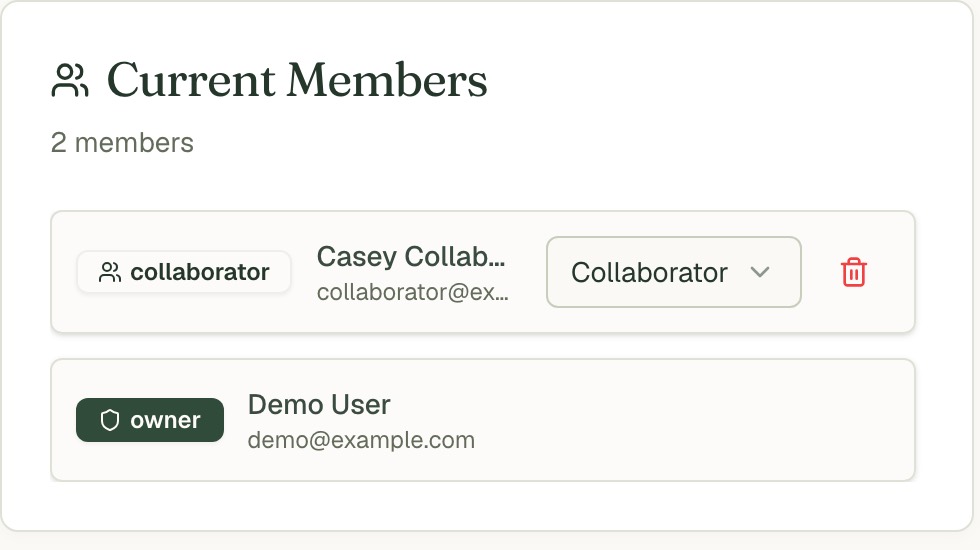
- In Current Members, use the role drop-down to change someone's role.
- Use the bin to remove them.
- Their access stops straight away. The work they added stays.
Common questions
Can I invite someone to only one project? Yes. Invitations are for the project selected at the top.
They never got the email. Ask them to check spam, then use the resend arrows.
Can I customise the invitation email? Owners can edit it on the Emails page, on workspaces that have it.