

Floorplan and rooms
Upload a drawing of your property and mark the rooms on it. Then you can find ideas by room.
- Floorplan > Upload
- Add Room and draw around it
- Click a room marker to filter ideas
Upload a floorplan
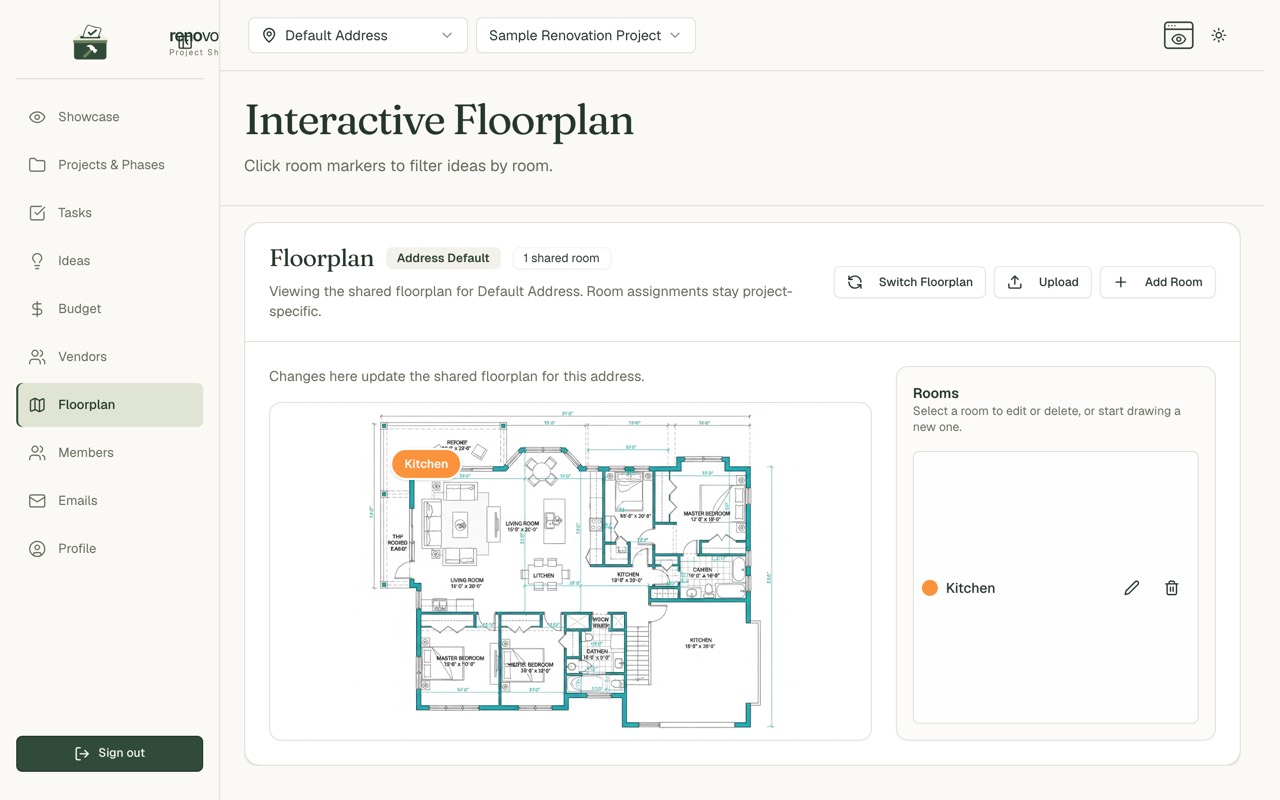
- Open Floorplan.
- Choose Upload and give the plan a name, like "Main level layout".
- Tick Apply to all projects at this address to share it.
- Tick Set as default for new projects if you like.
Add rooms
- Choose Add Room.
- Enter a name, like "Kitchen", and pick a colour.
- Draw the room on the plan.
Every room appears in the Rooms list. Use the pencil to edit it and the bin to delete it.
Tip: Rooms are what you assign ideas and tasks to, so name them how you talk about them.
Use rooms
- On Ideas, filter by room.
- On a task, tick the rooms it covers.
- On the floorplan, click a marker to filter ideas.
Shared or per project
The page tells you which plan you are looking at:
- Address default: shared with every project at this address
- Project override: used for this project only
Use Switch Floorplan to change it, or to delete a plan.
Heads up: Changes to the plan and its rooms update the shared plan for the address. Which ideas and tasks use a room stays specific to each project.
Common questions
Can I show the floorplan publicly? Yes, with Show public floorplan in the showcase settings. See Sharing and showcase.
I don't have a floorplan. That is fine. You can still add rooms by name when you add an idea.