

Sharing and showcase
The showcase is a public page that tells the story of your renovation. Nothing is public until you publish it.
- Switch the project to Public
- Check your sharing settings (gear icon)
- Choose Publish
What visitors see
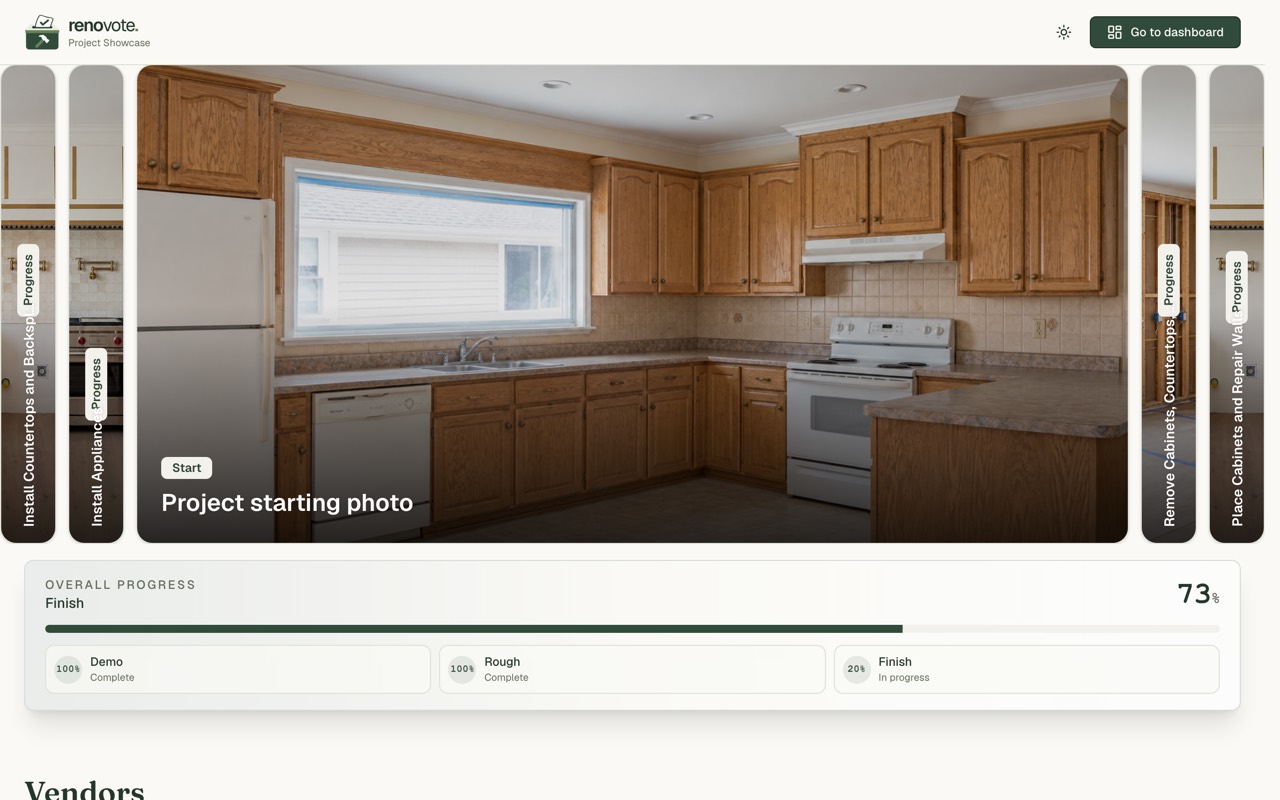
- A hero picture
- Overall progress by phase
- Phases, tasks and ideas
- Budget, vendors and floorplan, if you allow them
Visitors can read and look. They cannot vote or edit.
The toolbar

From left to right:
- Edit showcase: write stories and add notes
- Clipboard: choose which projects are public
- Clock: version history
- Gear: sharing settings
- Publish: send changes live
- Eye: preview the public site
Step 1: make it public
- Open the project on Projects & Phases and switch it to Public.
- Make sure the address is public too, under Profile.
Heads up: If either one is private, nothing shows publicly, even after you publish.
Step 2: choose what to share
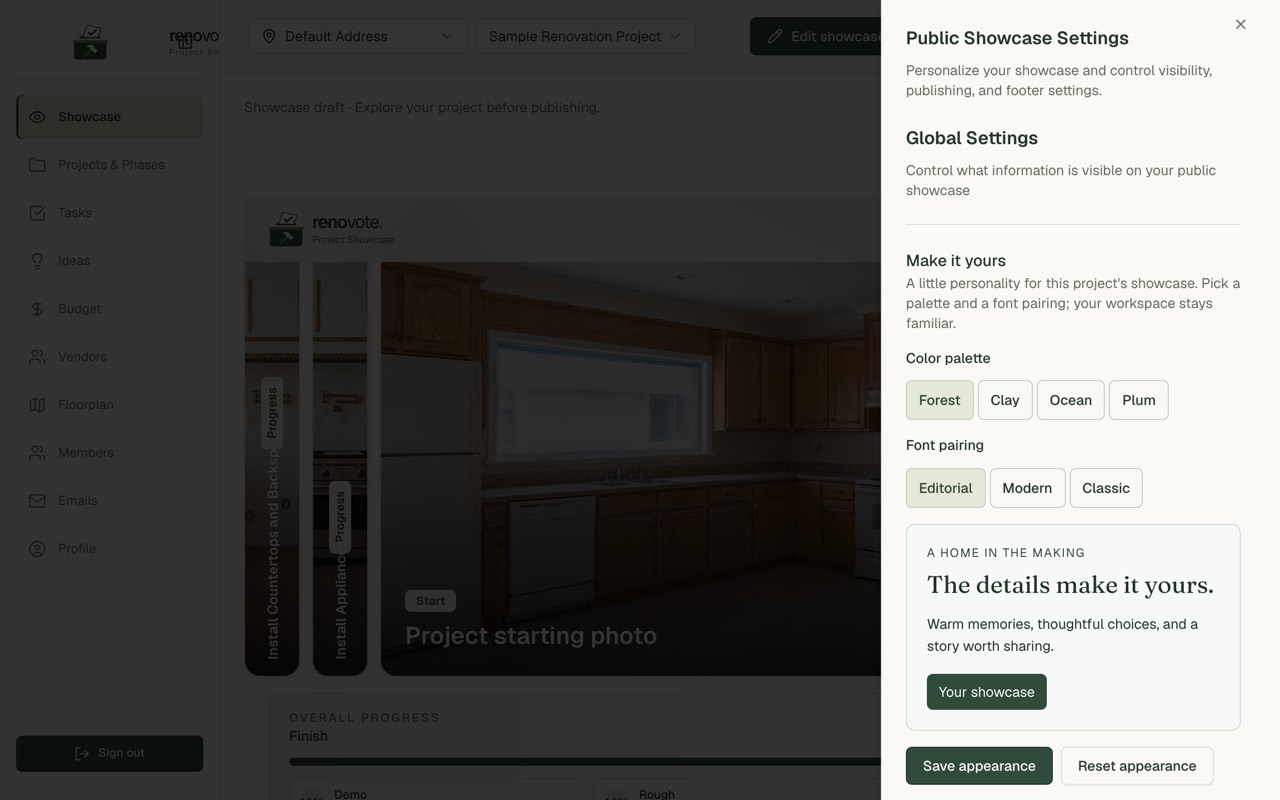
Open the gear. You can switch these on or off:
- phases, tasks and ideas
- vendors, the floorplan and cost items
- prices, progress and dates
You can also:
- choose whether new items start as public
- add a footer with a contact email, Instagram and Pinterest
- pick a hero style: Static image or Gallery
Starting values:
- On: phases, tasks, ideas, floorplan, prices, progress, dates
- Off: vendors and cost items
Override one item
Phases, tasks, ideas and vendors each have their own switches. Use them to show or hide just that item, or to follow the global setting.
Step 3: publish
- Choose Publish.
- Check the preview.
- Add a short note about what changed, if you like.
- Choose Publish Now.
The button is greyed out when there is nothing new to publish.
Tip: Want changes to go live on their own? Turn on Auto publish in the settings. It is off by default.
Tell the story
Choose Edit showcase to:
- write a short story under an idea or task ("Tell the story")
- add post-it notes and drag them where you want
- add a video (a YouTube or Vimeo link, or an upload) on plans that include it
Each note has its own Show on public showcase switch, so you can keep private notes in your preview.
Choose Save showcase when you are done, then publish.
Go back in time
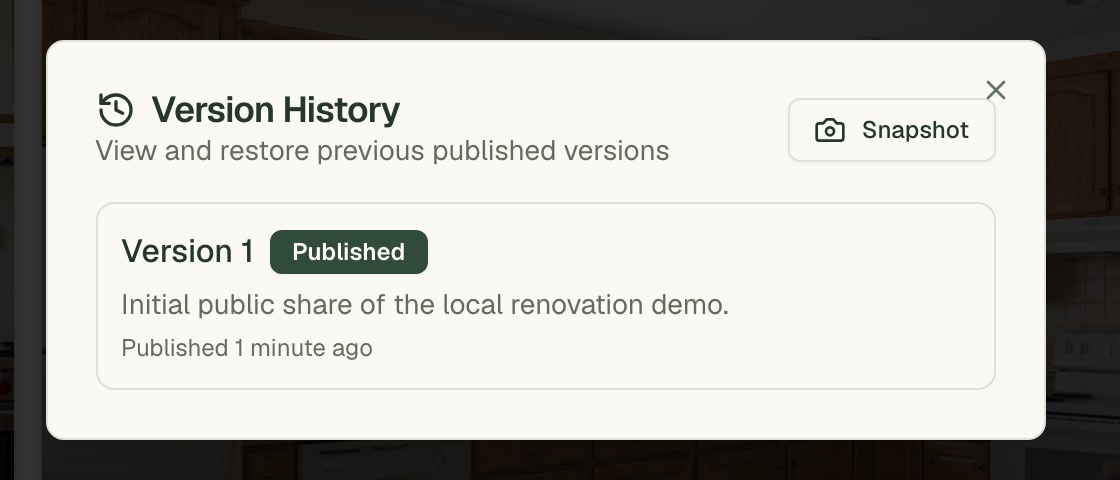
- Open the clock icon.
- Pick an earlier version and choose Restore Version.
- Or choose Snapshot to save how things are now.
Make it yours
Plus and higher plans can pick a colour palette (Forest, Clay, Ocean, Plum), a font pairing (Editorial, Modern, Classic), and add notes and video. See Billing and plans.
Common questions
Why is Publish greyed out? You have no unpublished changes.
I changed something and the showcase didn't update. Choose Publish, or turn on Auto publish.
I see a note about commissions near a product. Product links on a showcase carry a small notice that RenoVote may earn a commission.
Who can open my showcase? Anyone with the link. Public projects can also appear on the RenoVote home page.