Projects and phases
A project is one renovation. Phases are its stages.
- Projects & Phases > Add Project
- Then Add phase on the project card
- Archive when you are done, delete only if you are sure
Create a project
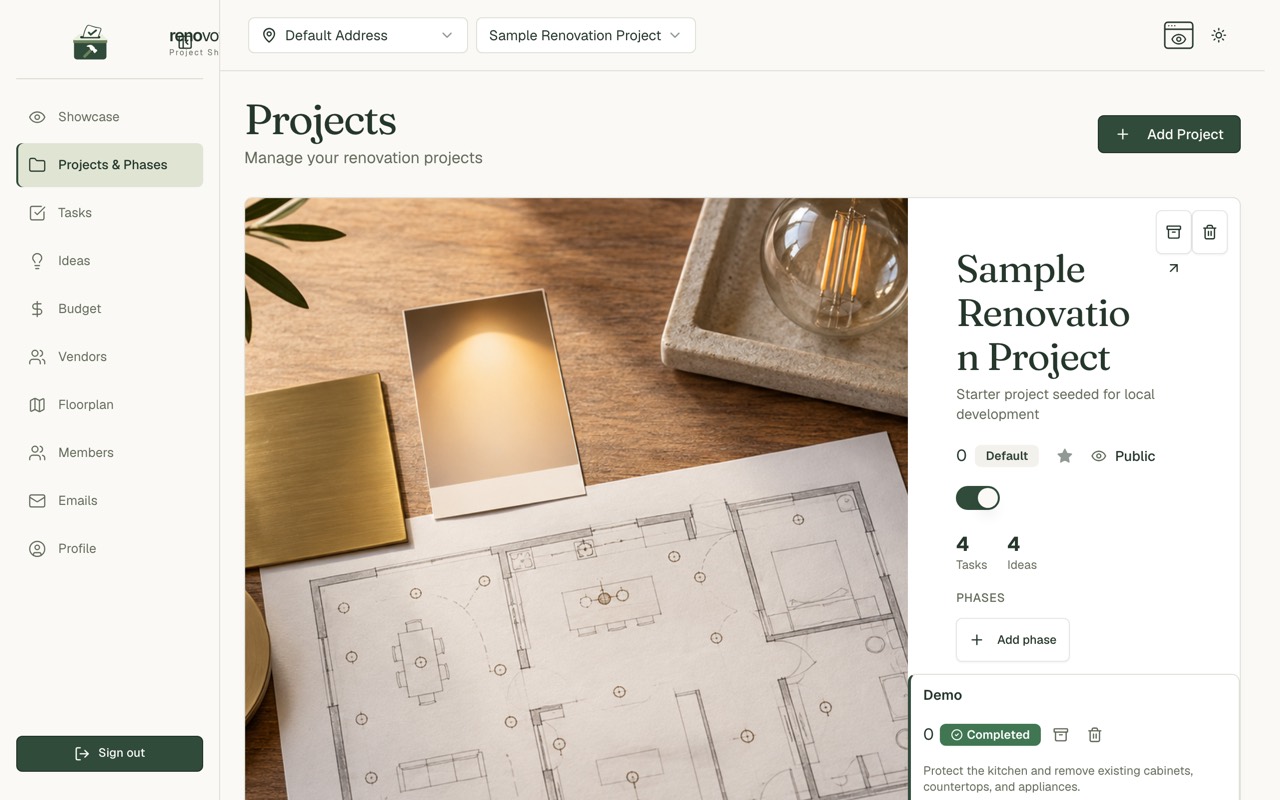
Choose Add Project and fill in:
- Project Name: required
- Description: optional
- Featured image URL: shown on the project card
- Starting photo URL: the room before work began
- Make this project publicly visible: leave off until you are ready
- Set as default for this address: opens first
Tip: Names like "Kitchen Remodel 2025" are easier to find later than "Project 1".
Add phases
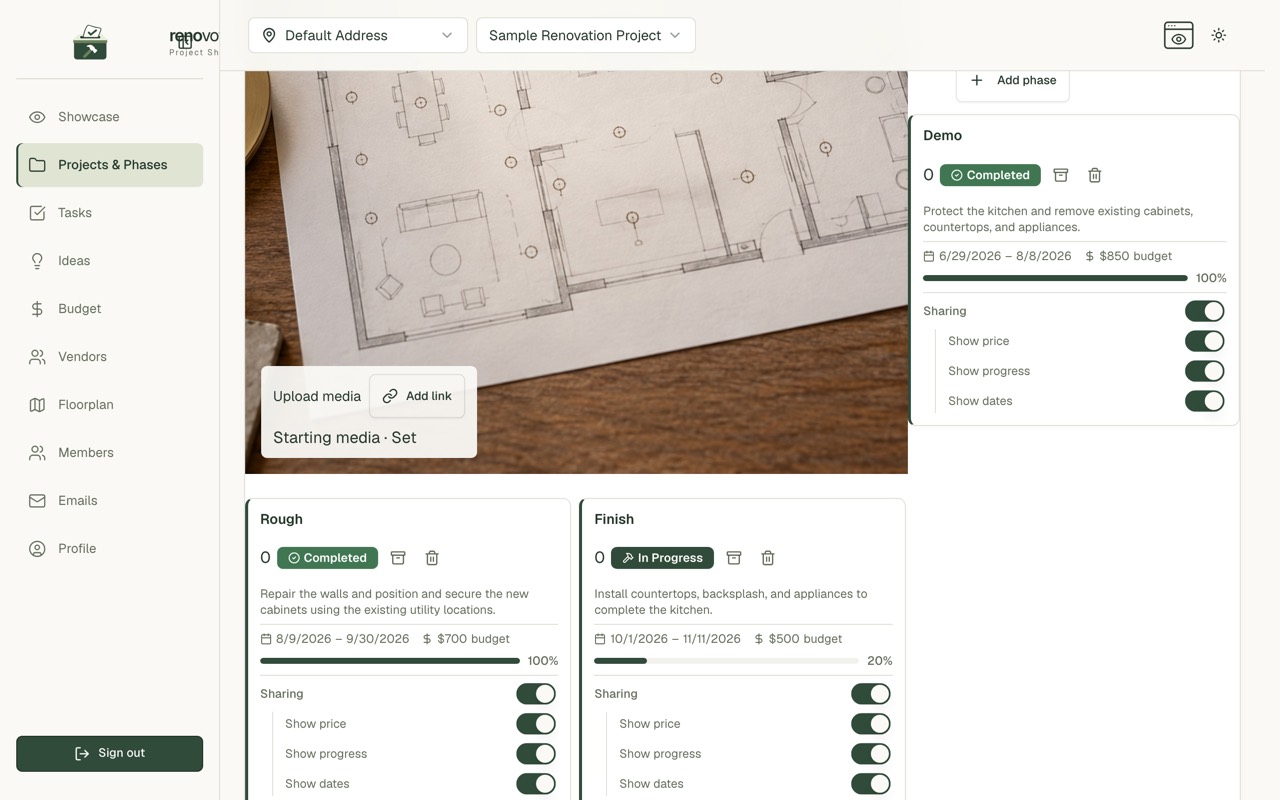
A phase is a stage of the work, such as Demo, Rough or Finish.
- Choose Add phase.
- Enter a name, an estimated budget, and start and end dates.
- Open the phase later for a description and sharing options.
Each phase shows:
- a status badge, like In Progress or Completed
- its dates and budget
- a progress bar
Good to know: You never set phase progress by hand. It follows the status of the tasks inside.
Sharing options on a phase
Each phase has a Sharing switch with three more underneath:
- Show price
- Show progress
- Show dates
These only matter once you publish a showcase. See Sharing and showcase.
Photos for the project
- Add a featured image and a starting photo by pasting a link to each.
- Photos for individual tasks go on the task. See Tasks.
Default project
If you have several projects at one address, mark one as Default with the star. It comes first in your list.
Archive or delete
Archive (box icon)
- Takes the project out of daily use
- You can still open and read it
- Nobody can change it until you restore it
- Press the same button to restore
Delete (bin icon)
- Permanent
- RenoVote asks you to confirm
- Phases, tasks and ideas go with it
Heads up: Not sure? Archive. You can always delete later.
Common questions
How many projects can I have? It depends on your plan. See Billing and plans.
Archived projects: do they count? Archived projects do not count toward your active projects.