

Ideas and voting
The Ideas page is your moodboard. Add options, vote together and pick the winners.
- Ideas > Add Idea
- Vote with the thumbs
- Set the status to Approved or Rejected to close voting
Add an idea
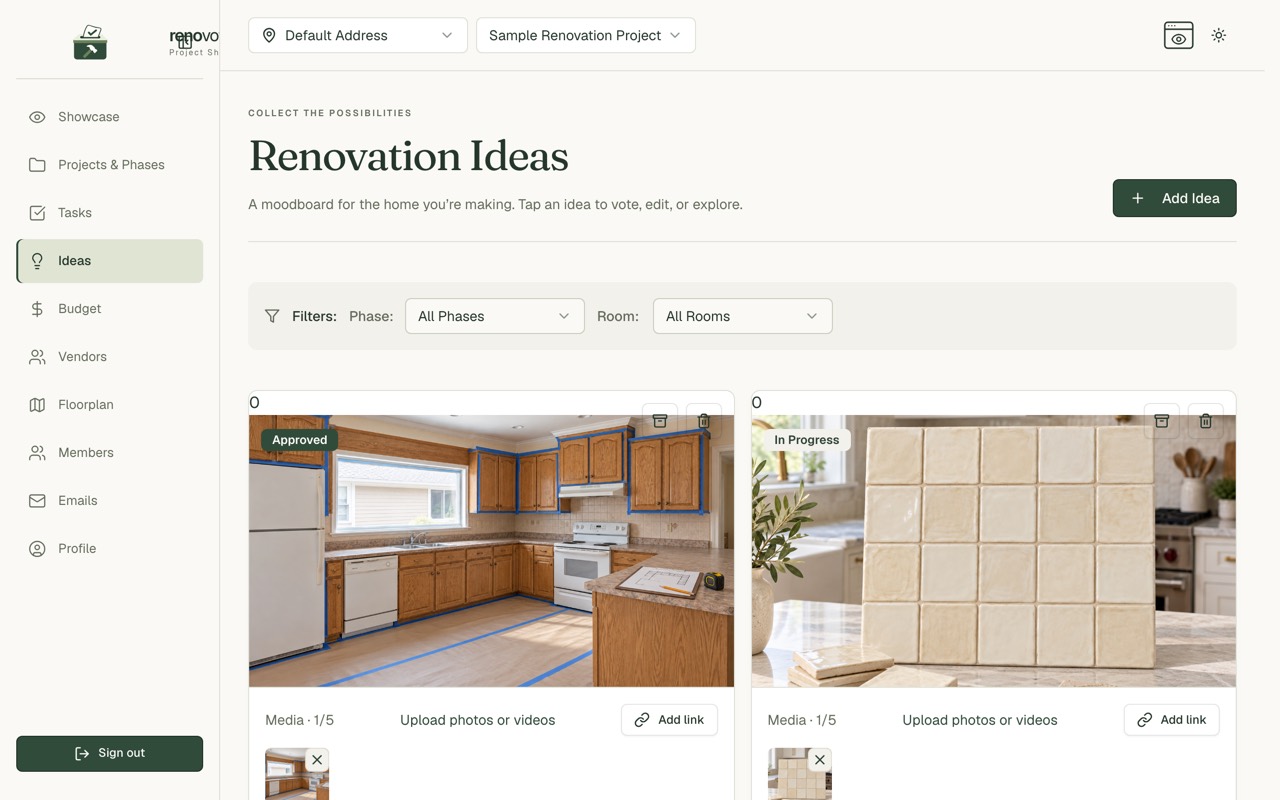
Choose Add Idea. Only the title is required.
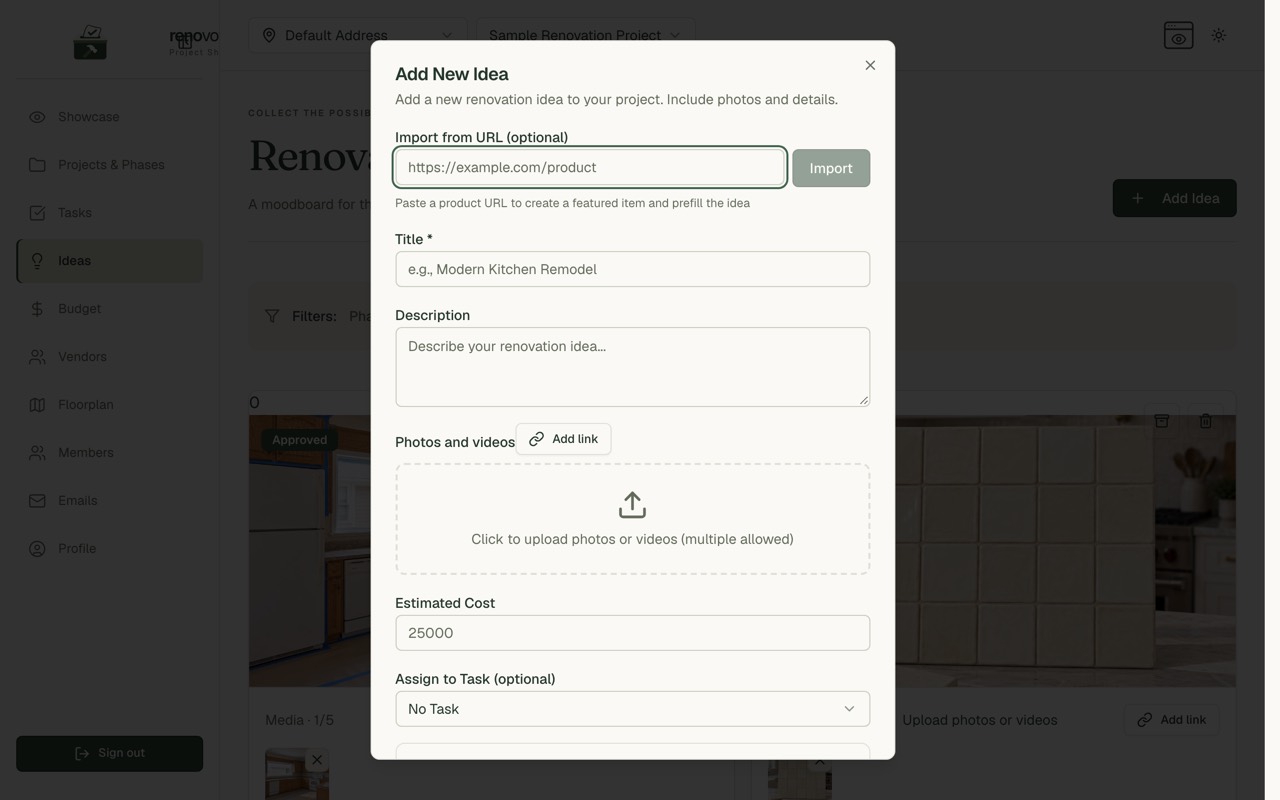
You can add:
- a description
- photos or videos
- an Estimated Cost
- the rooms it covers
- a task to link it to
- Make Public, if you want it on your showcase
Import from a link
- Paste a product link into Import from URL.
- Choose Import.
- RenoVote tries to fill in the title, description and image.
Heads up: Some pages cannot be read. You can still save the link and type the details yourself.
Vote
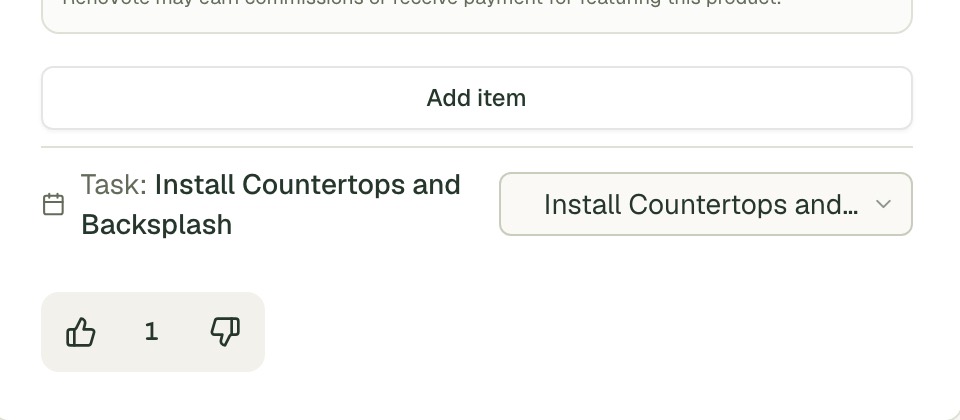
- Thumbs up counts +1.
- Thumbs down counts -1.
- The number is the total.
- You get one vote per idea.
- Click your vote again to take it back, or click the other thumb to change it.
Everyone in the project can vote, including Viewers. You need to be signed in.
Set the status
Anyone who can edit the project can set an idea to:
- Pending
- Approved
- Rejected
- In Progress
- Completed
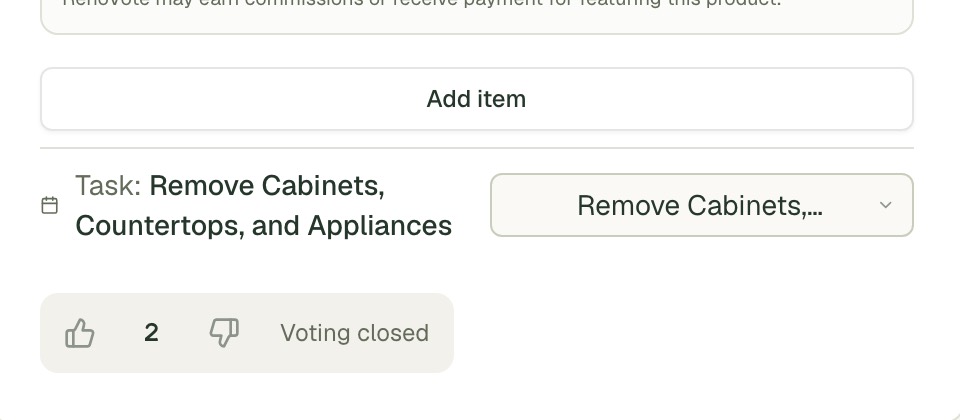
Good to know: Voting closes when an idea is Approved or Rejected. The votes stay visible. Set it back to Pending to reopen voting.
Add products to an idea
Under an idea you can add items, which are the actual products you are considering.
- Choose Add item.
- Each item has a link, an image, a list price (MSRP) and the price you paid.
- Switch Public on to show the item on your showcase.
Link an idea to a task
- Pick a task on the idea, or use View Ideas on the task.
- That turns a decision into work.
Filter and tidy
- Filter by phase or room.
- Archive an idea you are not ready to throw away. Nobody can vote on it, and you can restore it.
- Delete it for good with the bin icon.
Common questions
Does the page show who voted what? No. It only shows the total.
Can visitors to my showcase vote? No. They can see the vote counts on ideas you share, but only project members can vote.