Tasks
A task is a single job inside a phase, like "Remove cabinets" or "Install backsplash".
- Tasks > Add Task
- Pick the phase and set the status
- Add photos and costs as you go
Add a task
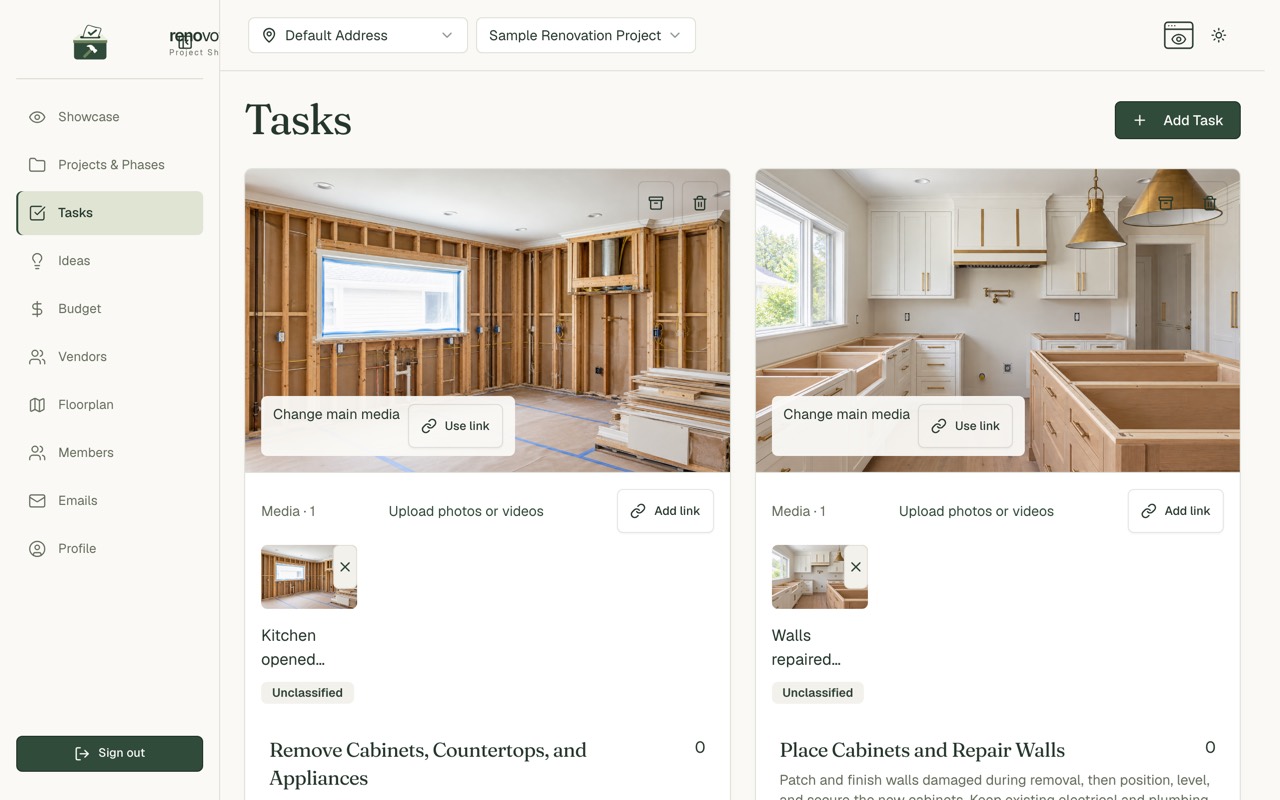
Choose Add Task and fill in:
- Task Name
- Description
- Phase: pick one first. Create phases on Projects if you have none.
- Status: Pending, In Progress or Completed
- Start Date and End Date
- Assign to Rooms: optional
- DIY task: tick it if you are doing the work yourself
Tip: For a DIY task, enter the Estimated DIY savings. It shows on the task so you remember why you did it yourself.
What a task card shows
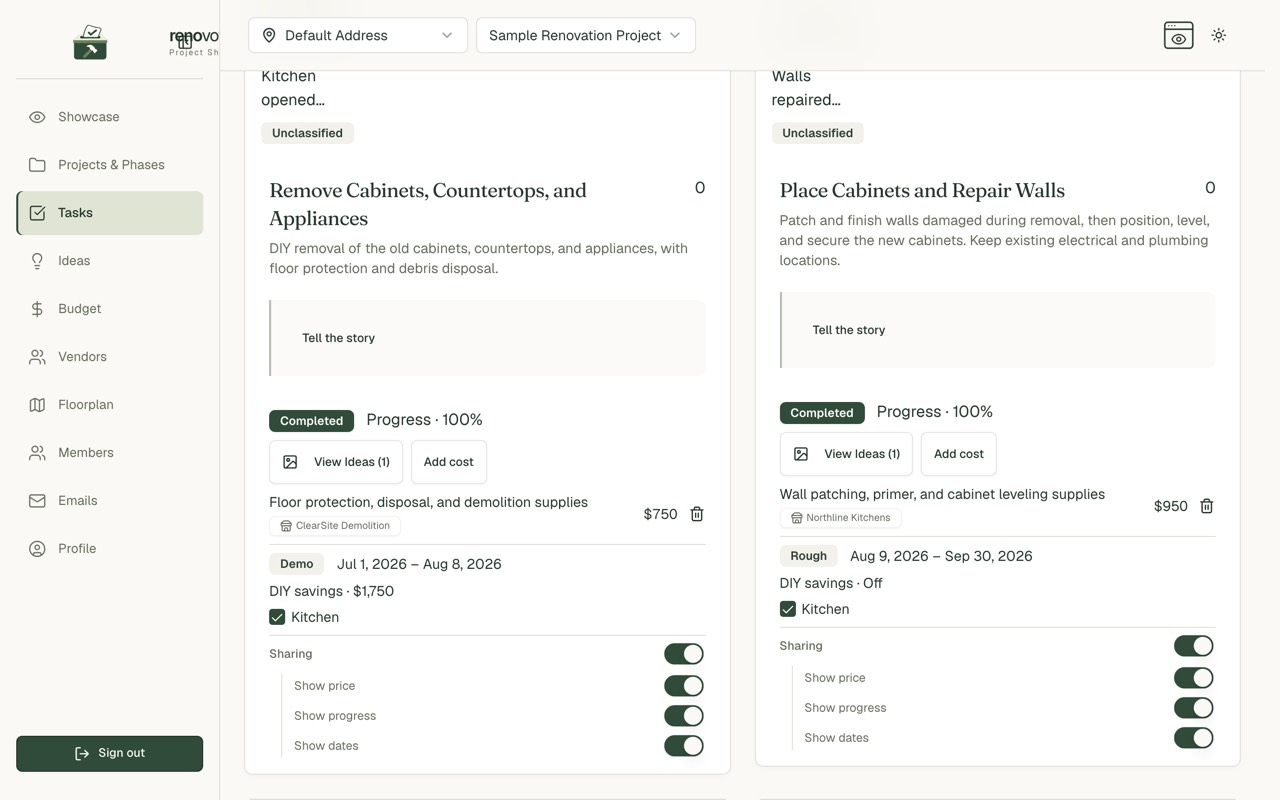
- Status and progress
- View Ideas: ideas linked to this task
- Add cost: money spent, with the vendor if you want
- Phase, dates and DIY savings
- Rooms
- Sharing switches for the showcase
Photos and videos
- Use Upload photos or videos or Add link.
- Mark each one as Before, After or Unclassified.
- Add a caption if you like.
- Choose one as the main picture with Change main media.
Tip: Before and after photos are what make a showcase worth reading.
Link ideas to a task
- Open View Ideas on the task.
- Add or remove ideas.
- Or pick the task from the idea itself. See Ideas and voting.
Record costs
- Choose Add cost on the task.
- Enter a description and an amount.
- Pick a vendor if it applies.
- It appears on the Budget page.
Common questions
Why can't I edit a task? Your role may be Viewer, or the project may be archived. See Members and roles.
Can I delete a task? Yes, with the bin icon. Use the box icon to archive it instead.