

Vendors
Keep every contractor and supplier in one list, with their contact details and what you have paid them.
- Vendors > Add Vendor
- Link a cost to them with Add cost
- Keep Show price off if you do not want it public
Add a vendor
Choose Add Vendor and fill in:
- Business Name
- Primary Contact
- Email, Phone and Website
- Notes: services, rates, best times to call
You can edit any of it later, right on the card.
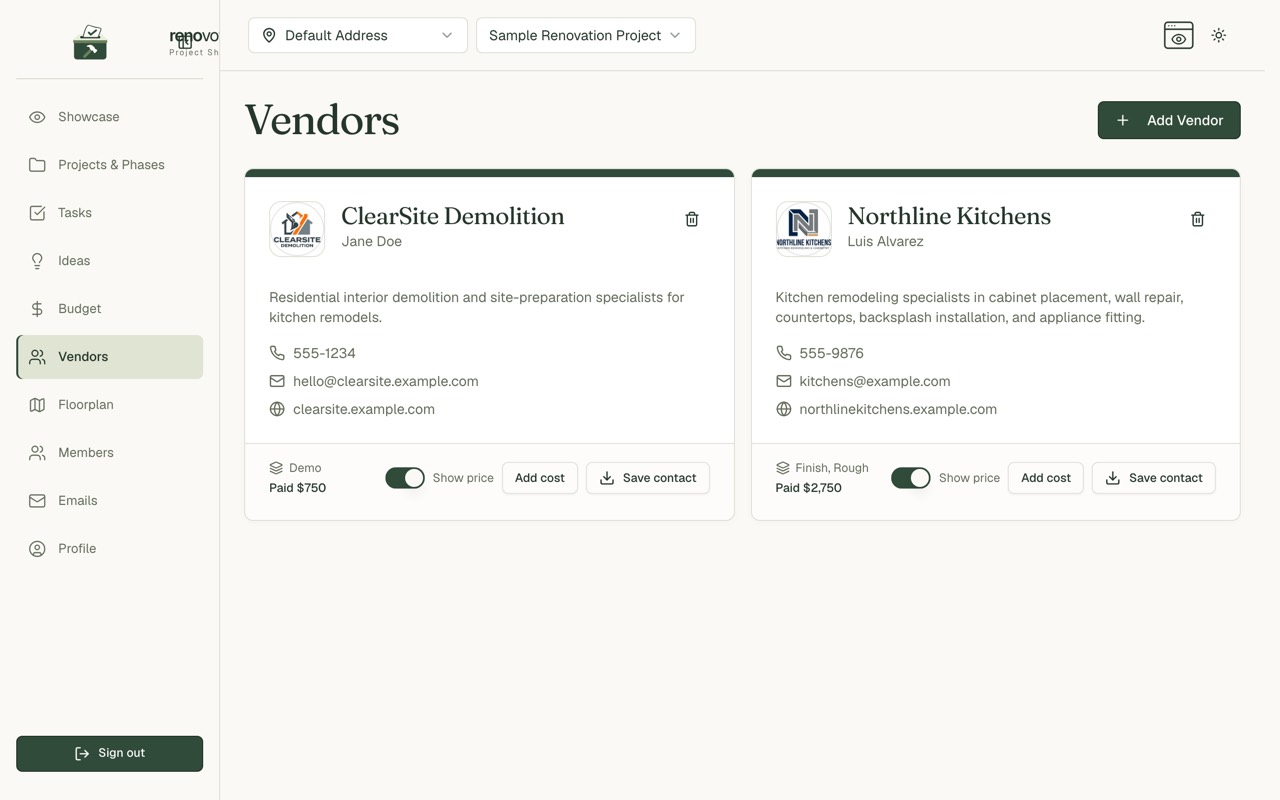
What the card shows
- Logo, business name and contact
- Description, phone, email and website
- The phases they worked in
- Paid: the total of costs linked to them
Link costs to a vendor
- Choose Add cost on the card.
- Or pick the vendor when you add a cost on a task.
- Filter the Budget page by vendor to see everything you spent with them.
Save the contact
Choose Save contact to download their details as a contact card for your phone or address book.
Sharing a vendor
- Show price on the card decides whether what you paid shows on your public showcase.
- Whether vendors show at all is a separate setting. It is off until you turn on Show public vendors.
Heads up: That setting shares vendor names and contact details. Think before you switch it on.
Common questions
Can I delete a vendor? Yes, with the bin icon.
Are vendors visible to everyone in the project? Yes, to the project's members. The public only sees them if you allow it.